Usage
VideoRecStation Usage
Operation of the VideoRecStation software is quite straightforward. You can start the program by running:
VideoRecStation
This will open the programs main dialog window that contains the list of available cameras and volume monitors.
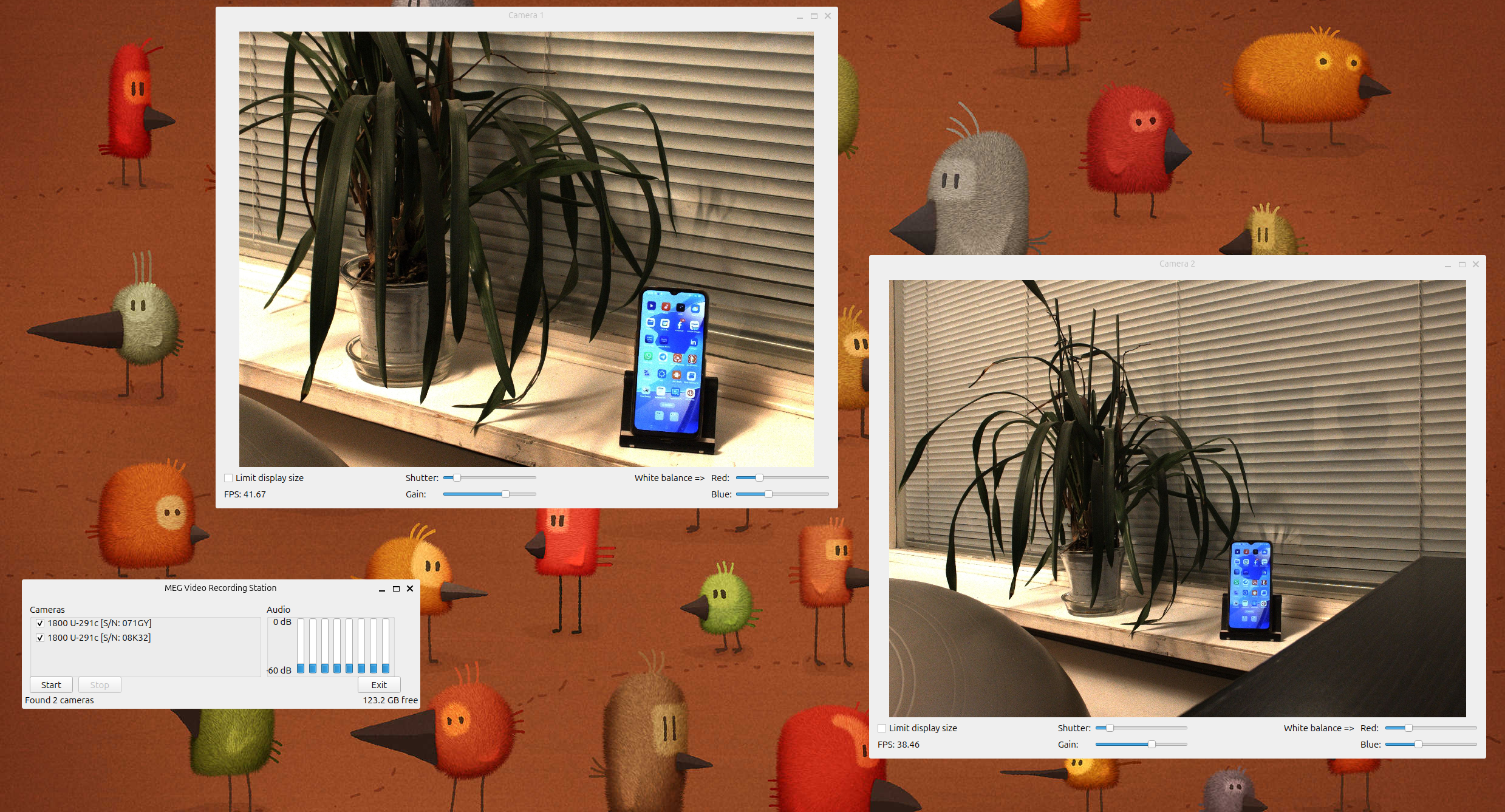
VideoRecStation with two cameras.
You can activate/deactivate each camera by clicking the corresponding checkbox in the list. When a camera is activated, the program will open a window showing the live video feed from that camera. You can adjust some video settings (shutter speed, gain, white balance) for the camera by dragging the sliders in the camera window. Once you are satisfied with the video settings, you can start recording by clicking the “Start” button and stop recording by clicking the “Stop” button. The video and audio data will be saved to files in the directory specified in the configuration file (see [misc] section for details).
ALSA Scarlett Control Panel Usage
The interface of the ALSA Scarlett Control Panel software is quite intuitive and you can probably figure most things out by just clicking around. If you nevertheless want to read some documentation, check out the project’s GitHub page.